

Get started
Quickstart
Sign up for Piste, connect your Shopify store, choose Slack or iMessage, and ask your first question. Setup is three short screens on the web.
To start with Piste, create an account at https://app.usepiste.com/sign-up, connect your Shopify store, and choose whether Piste reaches you in Slack, over iMessage or only on the web. Setup is three short screens. Piste then reads your store live, so it can answer from your first question, with nothing to import.
What do I need before I start?
- Your Shopify store's address. It's in your Shopify admin's address bar:
admin.shopify.com/store/your-store. You approve Piste's access on Shopify's own screen. - Slack or iMessage, if you want them. To add Slack you pick a Slack workspace and approve the app. To use iMessage you send Piste one text from your phone.
The person who signs up becomes the workspace's owner: the one person who signs in on the web, connects accounts and sets up automations.
How do I set up Piste?
Create your account
Go to https://app.usepiste.com/sign-up and sign up. The page reads "First 30 days free, with no contract". You land on the first setup screen, Welcome.
Tell Piste who you are
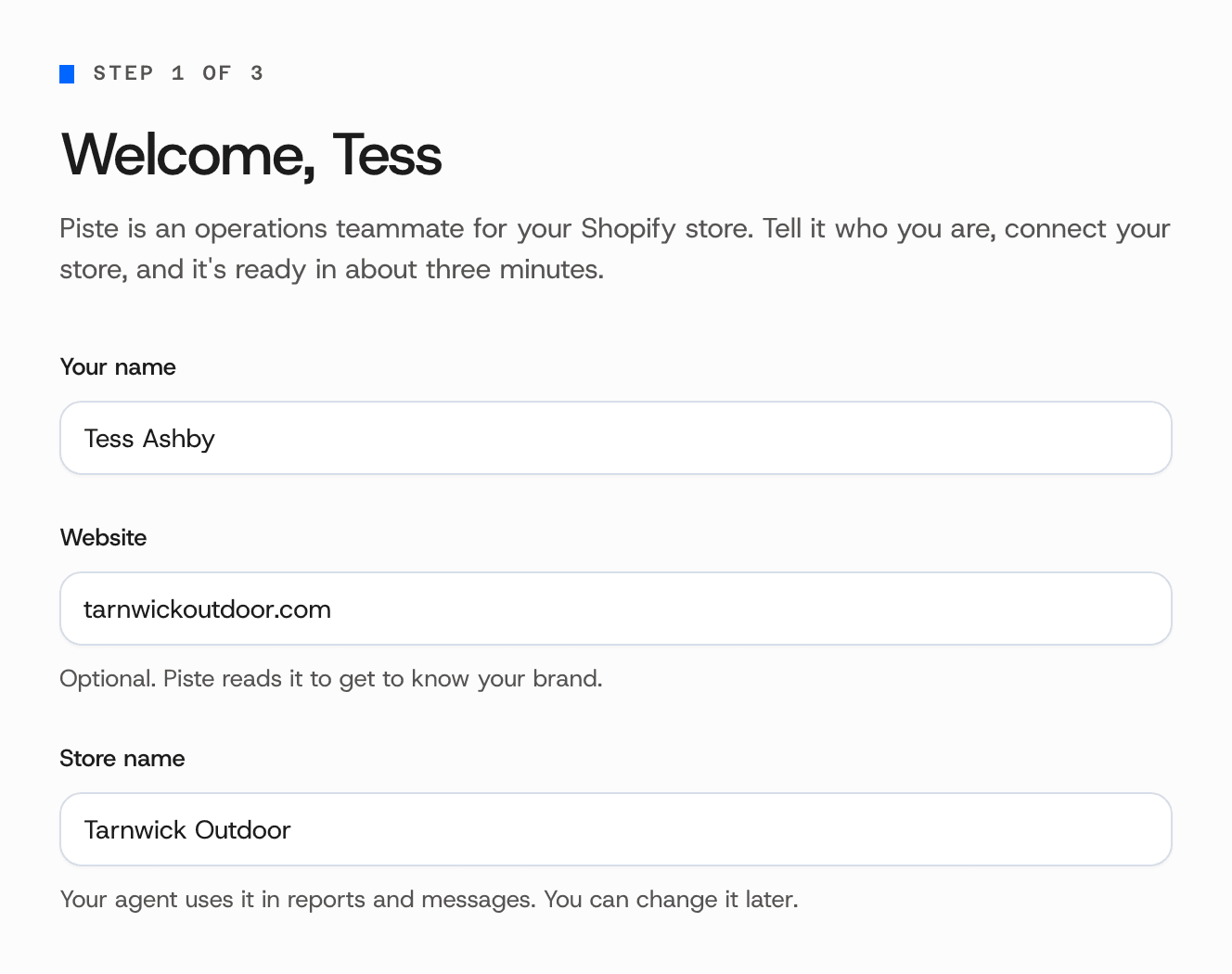
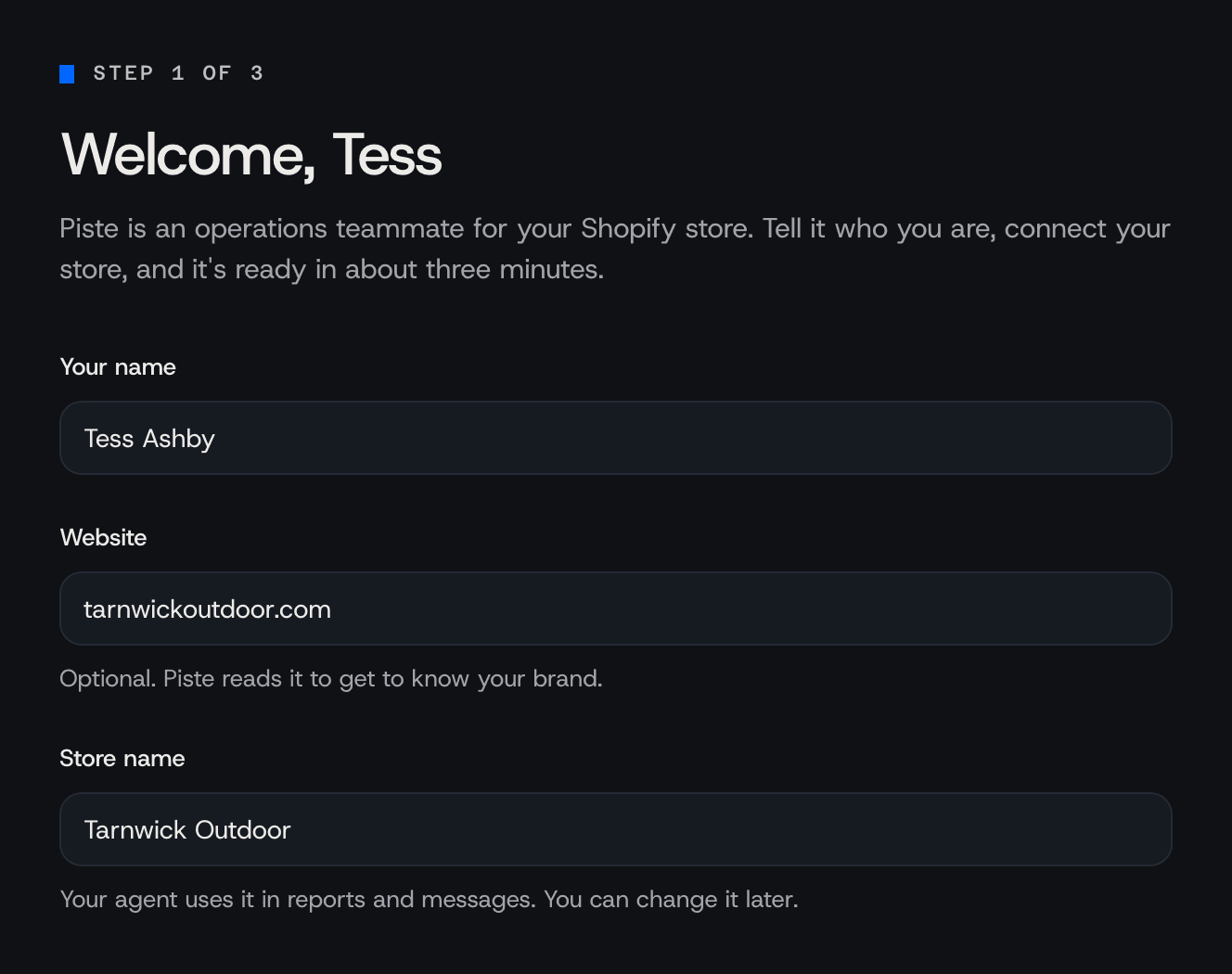
Fill in Your name and Store name. Website is optional: Piste reads it to get to know your brand, and uses it to guess your store's address. Press Continue.
Connect your Shopify store
On "Connect your Shopify store", type your Store address: the part before .myshopify.com. Press Connect Shopify. Shopify's own screen asks you to let Piste read your orders, products, inventory, discounts, locations and marketing events. That access only reads, and covers the last 60 days of orders. Sales reports, older orders and any change to your store are separate permissions, granted later from Piste's page in your Shopify admin. Approve, and you come straight back to the card marked Connected. Press Continue.
Choose where Piste reaches you
On "Where should Piste reach you?", Piste on the web is always on. Press Add to Slack to pick a Slack workspace and approve the app, or Connect iMessage to send Piste one text that's already written for you. You can add both. Press Continue, or Skip, just the web.
Go to where Piste is waiting
The last screen, "Piste is ready" under a small "All set", sends you on with Open Slack, Open Messages or Open the web chat. If you added Slack during setup, Piste's first message arrives in your Slack direct messages in about a minute.
Can I skip part of setup?
Yes. Every screen after Welcome can be skipped:
Skip for nowon the store screen, while no store is connected.Skip, just the webon the screen that asks where Piste reaches you.Skip setup, at the top right from the store screen onwards, ends setup and takes you to Home.
Whatever you skip waits on Home's "Get Piste up to speed" list, and on the Connections page, which is in the links at the foot of the sidebar.
What happens after setup?
Within about a minute, Piste opens a direct message with you and starts its onboarding conversation, the Kickoff:
- It reads your store and tells you the two or three largest things it found, each with its numbers and where they came from. It may propose one fix as a card.
- It offers to watch something for you, such as Change follow-ups, and starts the one you pick in its own Slack channel.
- It ends with a plan for your first week.
Reply in that thread. A new message at the top of the DM starts a conversation that doesn't know the Kickoff.
For the next week, Piste sends at most one message a day in that thread, at 9am on weekdays in your workspace's time zone, and only when there's something to say. Around day 7 it sums up the week and stops. To stop it sooner, press Stop the daily messages.
The Kickoff follows only a workspace's first Slack install, made during setup or within 24 hours of finishing it. See Slack.
What should I ask Piste first?
Piste answers from your live store data. These questions work with the access Shopify gives Piste when you install it:
| Ask | What Piste reads |
|---|---|
| "How did yesterday go?" | Yesterday's sales, net sales, refunds, orders and average order value, against the day before |
| "Find order #1042 and tell me what's in it." | One order's items, discount codes, totals, refunds and status |
| "Which orders from the last week haven't been fulfilled?" | Your orders, searched by date and fulfilment status |
| "How many of each size of the Linen Shirt are left?" | One product's variants, with each one's price and stock |
| "Which products have short descriptions or no SEO title?" | Each product's description length, and whether it has an SEO title and meta description |
The install doesn't give Piste your customers' details, so start with sales, orders and products. Without sales reports, Piste reports your sales one day at a time, over the last 30 days. To add them, open Piste from your Shopify admin and choose Allow Piste to read your sales reports. Then you can ask about any period, such as "How did last week go?", "What sold best over the last seven days?" or "What's about to sell out?". For orders from more than 60 days ago, choose Allow access to older orders. See Shopify for every permission and what it's for.
What should I set up next?
Home's "Get Piste up to speed" list shows what's left, and goes once all six steps are done:
- "Connect your Shopify store"
- "Reach Piste in Slack or iMessage"
- "Connect an ad account" Early access
- "Install a playbook"
- "Set up your first automation"
- "Try an automation now"
A good first automation is the morning sales briefing, which works with the access the install gives. A stock watch needs sales reports. When you create an automation from a template on the Automations page, or ask Piste for one in a chat, its first run is a dry run: it reads your store and writes its report, but changes nothing and posts nothing.
Related
- How Piste works: what Piste reads, what it does on its own, and what waits for a person.
- Automations: checks that run on a schedule and report back.
- Templates: the ready-made automations, filled in from your store.
- Team and roles: how your team uses Piste through Slack.