

Automations
Automations
An automation is work Piste does on its own, on a schedule or when your store changes. Only the owner sets one up, and a person decides what its runs propose.
An automation is a standing instruction that Piste runs on its own, on a schedule you choose. Each run reads your store, writes what it found in a new chat in Piste, and can also post the result to Slack or text it to you over iMessage. A run doesn't wait for you to approve a change: anything it would change in your store or an ad account becomes a card, and a person decides.
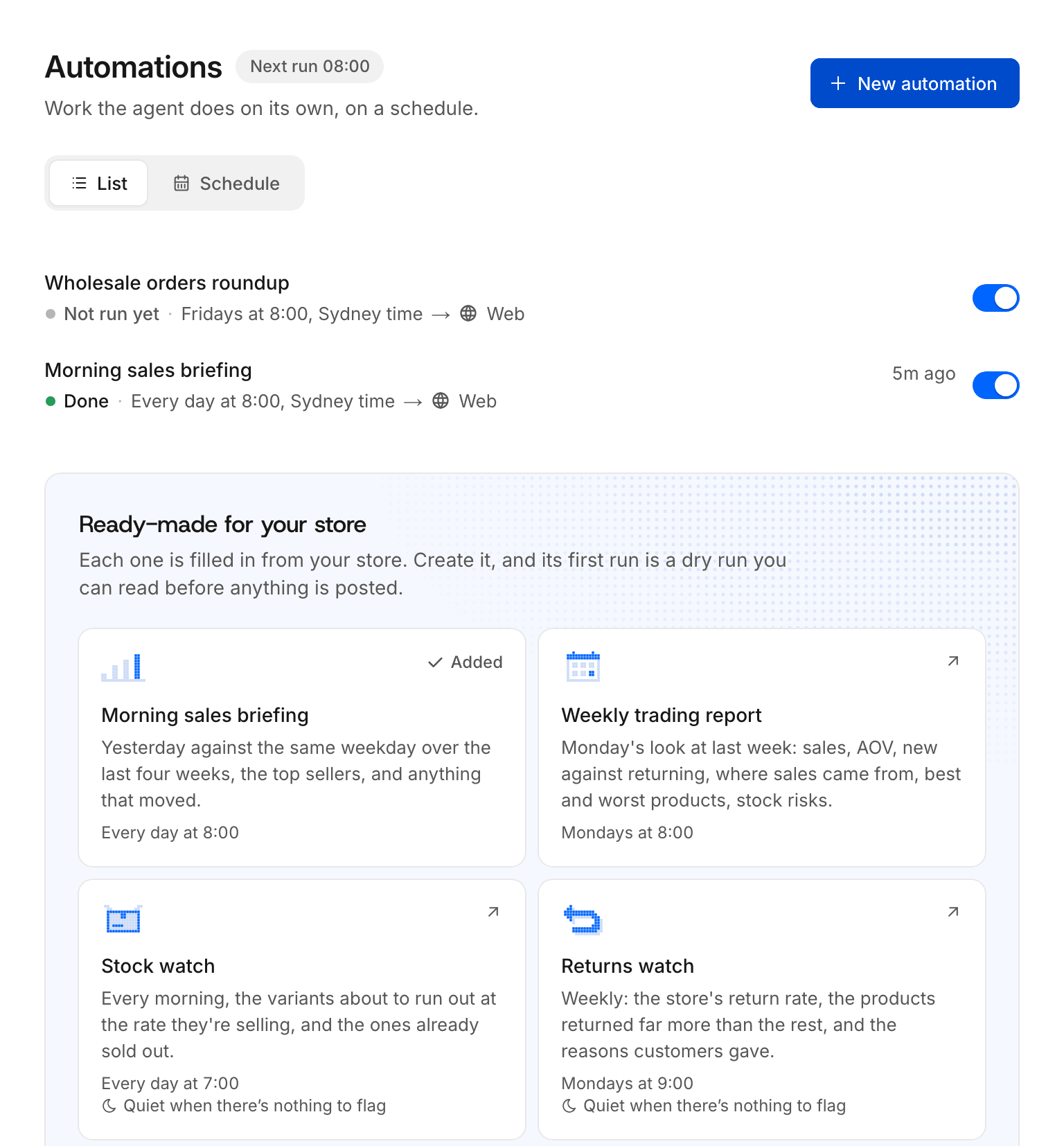
Automations live at Automations in the web app, under two tabs: List and Schedule.
Who can create an automation?
Only the workspace owner can create, edit, pause, run, try or delete an automation. Runs act as the owner, so the owner decides what Piste does on its own. Anyone else who asks Piste to set one up is told "Only the workspace owner can manage automations."
Your teammates still see what runs post in your Slack channels, and any full member of your Slack workspace can decide most of the cards under a run's post in a channel. A few, such as switching on pre-orders, are the owner's alone. See Team and roles.
How do I create an automation?
There are five ways to get an automation. Each makes the same kind of automation, which you can then edit, pause or delete like any other.
| Way | Where | What happens first |
|---|---|---|
| From a template | Automations, under "Ready-made for your store" | It's created on, and a dry run starts at once |
| Write your own | New automation on Automations | It runs at its first scheduled time |
| Ask Piste | Any conversation with Piste | Piste reads back the next three runs and offers a dry run |
| In its own Slack channel | Asking Piste in Slack, as the Kickoff conversation offers | A real first run, within about a minute |
| From a playbook | Installing a playbook | Its routines arrive switched off, each with a preview |
The Slack channel route is for three automations: Ad spend watch Early access in #piste-ad-spend, the Monday budget memo Early access in #piste-budget, and Change follow-ups in #piste-changes. See Channels.
Start from a template
Pick a template
Open Automations and pick a tile under "Ready-made for your store" (or under "Put the routine work on autopilot" when you have no automations yet). Its form opens, filled in for your store, with a line such as "Set up from your store: times are London time, amounts in GBP".
Check the numbers
Under What counts, change any number you like. Each template's numbers are listed on Templates.
Check when it runs and where results go
When it runs is already in your store's time zone. Where results go starts where you already read: your Slack DM, else iMessage, else the web.
Press Create and try it now
The automation is created on, and its first run starts at once as a dry run: it reads your store and writes the report, but posts nothing. You land on the automation's page to read it.
A workspace has at most one automation from each template. A template you've already used reads "Added", and its tile opens your automation instead.
Write your own
Describe the job
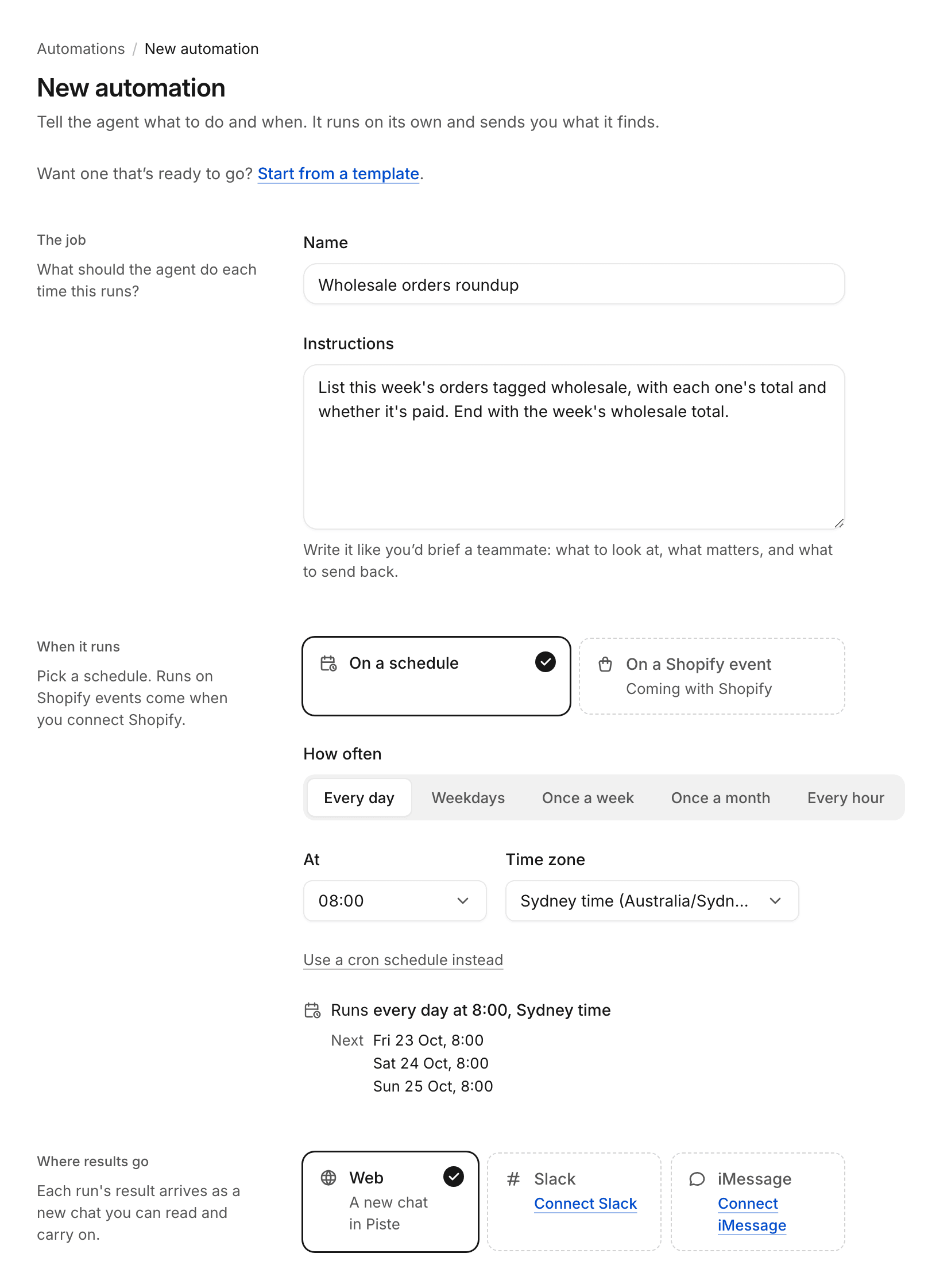
Give it a Name (up to 120 characters) and Instructions. Write them "like you'd brief a teammate: what to look at, what matters, and what to send back."
Choose when it runs
Under How often, pick Every day, Weekdays, Once a week, Once a month or Every hour, then the time and the Time zone. Times in the picker are on the hour, and a monthly date can be the 1st to the 28th. For anything else, choose Use a cron schedule instead and type five fields: minute, hour, day of the month, month, day of the week. The form shows the next runs as you go.
Choose where results go
Pick Web ("A new chat in Piste"), Slack ("Your DM or a channel") or iMessage ("A text to your number"). For Slack, pick a conversation under Post to. Only channels Piste has been added to are listed; invite it to another with /invite in that channel.
Press Create automation
The Turn it on now switch starts on. With it off, the automation is saved but "won't run until you turn it on."
The form's "On a Shopify event" tile can't be picked. To run something when your store changes, ask Piste for a store trigger.
Ask Piste
As the owner, tell Piste what you want in any conversation, for example "Every weekday at 9, send me yesterday's refunds in Slack." Piste creates the automation in your workspace's time zone unless you name another, reads back its next three runs so you can check them, and offers a dry run.
Asking Piste for one of the templates works too. Piste asks for your approval first, and only the owner can give it. Over iMessage, you approve from the link to the conversation in Piste. You can also ask Piste to pause an automation, change its schedule or where it posts, run it now, or delete it; deleting asks for your approval each time.
What does Try it now do?
Try it now runs the automation once, now, as a dry run. A dry run does every read and writes its full result, but changes nothing and posts nothing. The result stays in the run's chat in Piste.
You'll find Try it now at the top of the automation's page, under Run history before its first run, and in the menu beside its next run on the Schedule. You can also ask Piste for a dry run.
- The run's chat title starts "Dry run ·", and a banner reads "Dry run of" the automation's name: "Nothing was changed and nothing was posted."
- Each change the run would have made is listed under "Would have done", for example "Would have done 2 things".
- In Run history, the run reads "Dry run · nothing changed or posted".
- The whole chat stays a dry run, your replies in it too. To act for real, press
Run now.
What does Run now do?
Run now queues a real run outside the schedule. It starts within about a minute, even while the automation is paused. An automation runs one at a time, so while a run is queued or going the button reads Run queued, then Running, and can't be pressed again.
Where do results go?
Every run starts its own chat in Piste, which you can read and reply in. Where else the result goes is the automation's choice under Where results go.
| Destination | What you get |
|---|---|
| Web | The run's chat in Piste, and nothing else |
| Slack | A post in your DM or a channel: the automation's name in bold, the result (cut to fit Slack's 4,000 characters) and a link, "Open the run in Piste". Cards for any changes it proposed go under the post. |
| iMessage | A text to your number with a link to the run's chat. When the run proposed changes, it ends "N changes are waiting for your decision in Needs you" with a link. |
- Quiet runs. A run with nothing worth saying starts its reply with "Quiet:". It stays in its chat and isn't posted or texted. A quiet run that still proposed changes posts one line in Slack saying it "has nothing new to report, and changes waiting for a decision.", or texts that it "has nothing new to report" with how many changes are waiting.
- Failures. A failed run posts "didn't finish" with a link to the run. Only the first failure in a row is posted; the next result that works is posted as usual.
- Dry runs are never posted.
- Quiet hours. If the owner set working hours, posts outside them wait and go out when they next open. See Quiet hours and digests.
For Slack channels made for automations, and team channels, see Channels.
Do automations change anything?
A run reads and reports. When it finds something worth changing in your store or an ad account, it stores a proposal with a card and buttons, and the run ends. A run posted to Slack carries the cards under its post. Store edits, change follow-ups and ad changes also wait in Needs you on the web, wherever the run posted, so you can decide them there too.
Two things happen without a click, and only in automations: a price probe puts the price back when it ends, and an ad change that fits a standing approval Early access the owner switched on is applied. Everything else waits for a person.
How do I pause, edit or delete an automation?
| Action | How | What happens |
|---|---|---|
| Pause or turn on | The switch under the automation's name, which reads "On" or "Paused", or the switch on its row in the list | Paused, "it keeps its settings and history but doesn't run on its schedule." Turned back on, it runs from its next scheduled time. |
| Edit | Edit on the automation's page | The "Edit automation" form. Press Save changes. |
| Only what's new | Edit, then What's new | The switch Only tell me what's new since last time hands each run the last report, so it leaves out what hasn't changed |
| Delete | The Delete button (a bin) on the automation's page, then Delete automation | "It stops running and its run history goes. The chats its runs made stay in your chats." |
What's on an automation's page?
Each automation's page shows What it does (its instructions), When it runs (its schedule, time zone and next three runs), Where results go, and Run history with its 50 most recent runs.
Each run in Run history shows the first line of its result, its status ("Queued", "Running", "Done", "Failed", "Skipped" or "Waiting for you"), how it started ("On schedule", "Run now" or "Store trigger"), how long it took and when. Click a run to open its chat.
- A failed run shows a banner with the cause. When the cause is a connection, the banner offers
Reconnect. - "Skipped N runs because the one before was still going." means runs came due while an earlier one was still working.
- A run found more than 24 hours late is skipped as "Missed by more than 24 hours."
- A run that stops responding is ended after 2 hours: "The run stopped responding and was ended."
The check-in
An automation made from a template checks in once. Its first real run at least 3 days after you created it ends by asking whether the report works for you: what to drop, what to add, or a number to change. It posts even if it would otherwise have been quiet. Reply in the run's chat; Piste saves what you want to memory, so every later run follows it.
Screens
| Screen | Address | What it's for |
|---|---|---|
| Automations | /automations | Your automations as a list, and the templates under "Ready-made for your store" |
| New automation | /automations/new | The form for writing your own; a template opens it filled in |
| An automation | /automations/<id> | Its instructions, schedule, destination, run history and buttons |
| Edit automation | /automations/<id>/edit | Change its name, instructions, schedule, time zone or destination |
| Schedule | /automations/schedule | What ran in the last 7 days and what runs in the next 7 |
Limits
| What | Limit |
|---|---|
| Automation name | 120 characters |
| Templates per workspace | One automation from each |
| Runs at once, per automation | One |
| Run now or Try it now starts | Within about a minute |
| Run history on the page | The 50 most recent runs |
| A Slack post's text | 4,000 characters |
| A run found late | Skipped after 24 hours |
| A run that stops responding | Ended after 2 hours |
| Template check-in | First real run at least 3 days after it was created |
| Last report handed to a run | 2,000 characters |
Related
- Templates: the nine ready-made automations.
- Store triggers: runs that start when something happens in your store.
- Schedule and watches: the agenda, watches and time zones.
- Proposals and cards: how a run's changes are decided.